 ELHEXA Codex
Party
A Party is a saved team of up to six adventurers, kept on your account with each member’s skill settings and equipment. Set it up once in the Card Box, then load it with one tap:
- Battle quests — the Load Party strip under the formation.
- PvP Arena — the same strip under your side of the arena form.
- Expedition — inside the Select Members picker.
Where to find it
Card Box → Card tab → the Party button next to the filter and sort controls. Parties are created, edited and removed only here; the battle forms only load them.
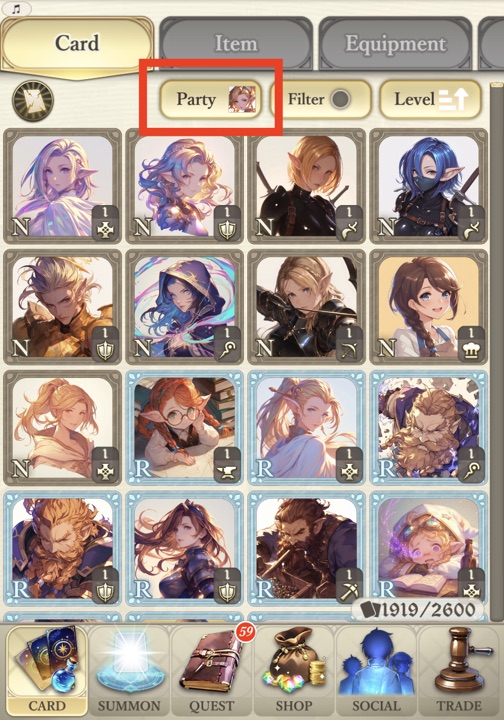
Party Settings
The party slots run across the top — a coloured number is a saved party — and the selected party’s members sit in the formation below.
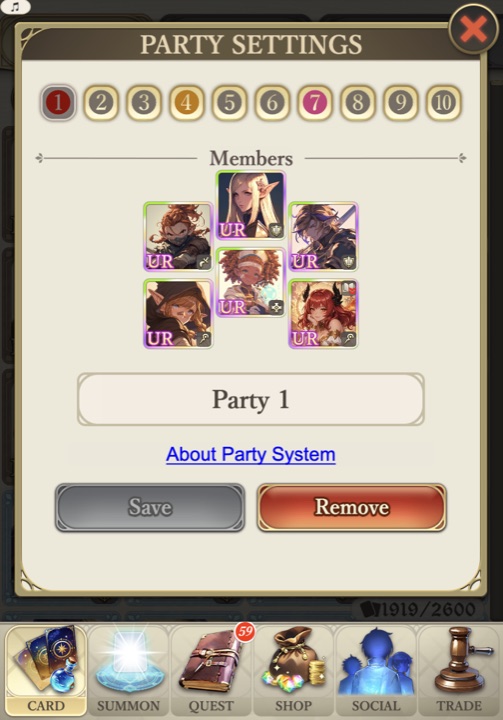
Setting up a party
- Tap a slot number.
- Tap the members area, pick up to six adventurers into the formation (or let Auto fill the empty positions), then Confirm.
- Tap the name to rename the party (up to 20 characters). An unnamed party goes by its number.
- Tap Save. Saving replaces whatever the slot held. Remove clears the slot; the adventurers and their equipment are not touched.
Three things, taken from each member when you tap Save:
- The adventurer. It fights with the level and stats it has today.
- Its Custom Skill Mode marks: whether the mode is on, which skills are switched off, and the lowered level of any skill you set below its learned level. A skill at full level is not recorded, so levelling a skill up or learning a new one applies automatically — no re-save needed.
- Its equipment, piece by piece. The party remembers the piece itself, not its level, so levelling a piece up applies automatically — no re-save needed.
Rules
- One to six members. A partial party is fine — fill the rest by hand after loading.
- Battle classes only (Warrior, Mage, Healer, Rogue, Archer). The same adventurer, or two cards of the same portrait, cannot share a party.
- A busy adventurer (on a quest, crafting, listed on the market, on an Expedition) can be saved. Busy only matters when you load.
- Selecting a party puts its saved skills and equipment on the members, so what you see is what it loads. Long-press a member to open its card and edit it right there — Custom Skill Mode, skills, equipment, level.
 A member you changed shows this mark on its slot: the party no longer matches what you saved. Remember to tap Save.
Loading a party in a battle quest
Accept a battle quest and the Load Party strip appears under the formation. It lists only the slots that hold a saved party, and nothing is selected until you tap one.
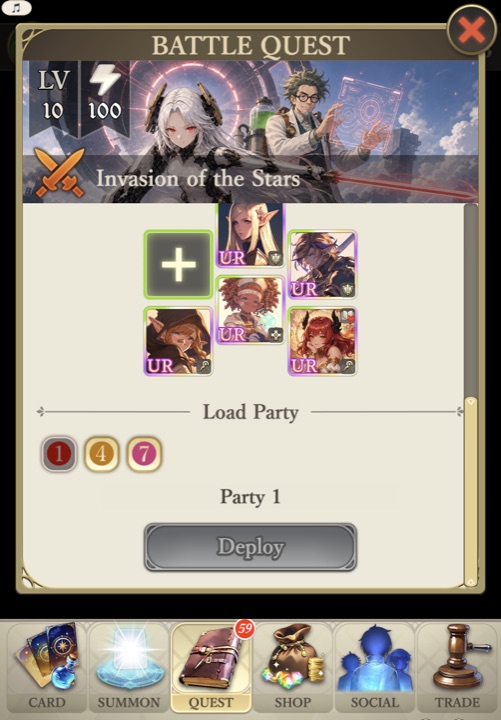
What a tap does
- The formation is replaced by the party’s members in their saved positions.
- Each member gets its saved skill marks and equipment back (see Equipment and parties). Everything else — level, learned skills, skill levels — is the card as it is now. Marks you changed after saving are reset to the saved ones.
- The number stays pressed and the party’s name is shown. The form is still yours to edit — the moment the team differs from the saved party, the number is released and the name disappears. The team stays; only the label goes. Tap the number again to reload.
When a member cannot load
Its position stays empty and the load message says how many landed and why. The reasons:
- busy — on a quest, crafting, listed on the market or on an Expedition (PvP is the exception, see below).
- low level — below the level the quest or arena requires.
- missing — the card has left your box (traded, transmuted, merged). The party forgets it at that load.
- gear skipped — the member loaded, but a saved piece stayed where it was (worn by a busy adventurer, or the member itself is busy).
PvP Arena
The same strip, under your side of the arena form, with the arena’s own rules:
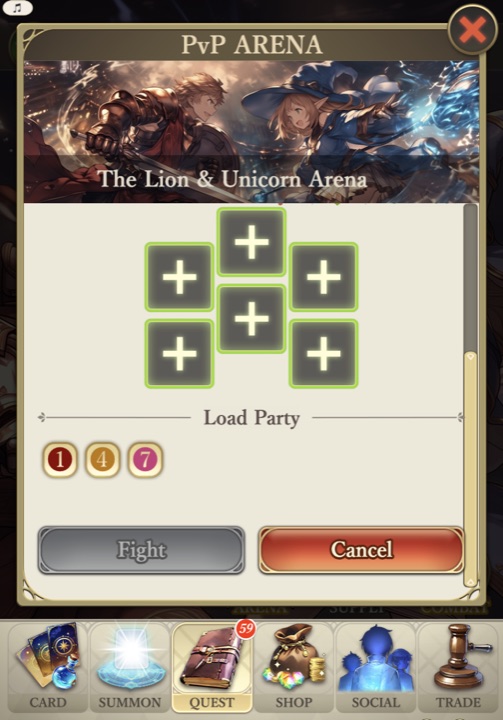
- The arena’s entry rules apply, as in the arena picker. A member that fails them (for example its level) leaves its position empty.
- Busy adventurers do load here — the arena fights a frozen copy of the card — except cards listed on the market. Whatever is in the six positions when you tap Fight is the team.
Expedition
The party numbers sit inside Select Members, next to the buttons. Tapping one marks the party’s members as picked.
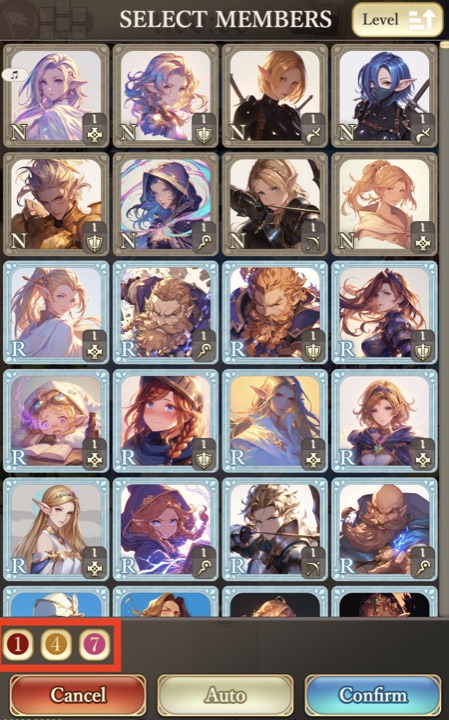
- Nothing deploys until you tap Confirm, and an Expedition team must be exactly six.
- Adventurers that retreated from the current Expedition, and busy ones, are left out.
Equipment and parties
Loading restores each member’s saved set:
- Saved pieces go on; pieces not in the saved set come off. A member saved bare loads bare.
- A saved piece worn by another free adventurer moves over, in the party or not — one sword saved in two parties follows whichever you load.
- Nothing is taken from a busy adventurer, and a busy member keeps what it wears. The piece is skipped and the load message says “gear skipped”.
- A piece that no longer exists is dropped from the party.
Party slots
Every account starts with 10 slots. The Party Slots Upgrade in the shop’s Special tab adds five per purchase.